How to change your GPS location and IP on Android

Many Android users employ GPS modification apps to change their device's geolocation. Unfortunately, GPS spoofing software often lacks essential features that would ensure online security and is inefficient at altering your IP address. Due to this, you can find yourself excluded from using some apps or even exposed to security risks.
The best and safest geolocation changer for Android that conceals your true IP address is a Virtual Private Network. A VPN unblocks geo-restricted content, protects your device, and keeps your internet activities private. It will also enable you to access local websites while traveling, prevent advertisements, and protect your data.
We'll expose you to a few strong VPN services compatible with Android in this piece. Also, we'll walk you through how to modify your Android smartphone's GPS position.
How to change location on an Android phone

- Select a reliable VPN. We suggest NordVPN. It's currently running a 75% discount.
- Set up the VPN
- Connect to the server of your preferred location
- Access geo-blocked content with your new IP address
Why would you change location on Android?
There are several situations where changing your GPS location is necessary. Here are a few of the more typical ones.
- Play region-based games easily without any limitations. For instance, you can enjoy Pokémon GO without having to relocate.
- Disguise your location. For instance, when you wish to change your country on a dating app. The other person won't be aware of your whereabouts via this method, allowing you to stay hidden without any difficulty.
- Protect your device and data. Changing your location and IP address allows you to stay private online. On top of that, Android VPN encrypts your information, which becomes indecipherable to third parties.
- Access geo-blocked content. Many streaming or gambling sites are available in certain countries only. By changing your Android location, you’ll be able to access them from anywhere.
VPNs that can spoof GPS location on Android
Our picks for the top VPNs that can effectively mask your location are listed below:
- NordVPN – best VPN for changing Android location.
- Surfshark VPN – easily spoofs GPS location on Android
- Atlas VPN – freemium VPN for changing Android’s GPS location
How to change the IP address on Android devices?
Changing your IP address on your typical Android phone like a Samsung or Huawei isn't a complicated ordeal, and we'll show you how. We'll use NordVPN for this tutorial as it makes it seamless to modify your region at any time on both desktop and mobile devices.
-
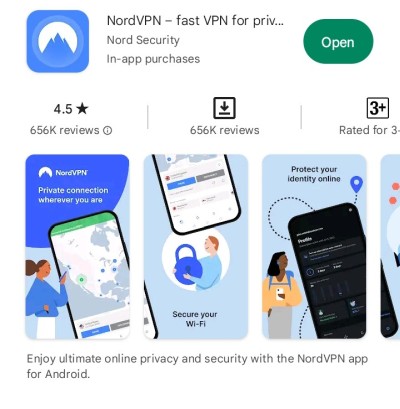
Installing the NordVPN app or another reliable VPN is the first step

-
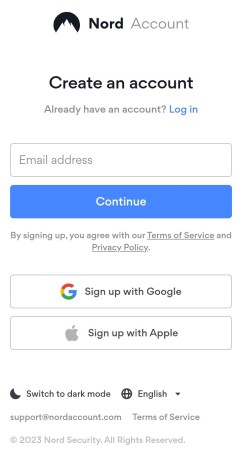
Create a NordVPN account

-
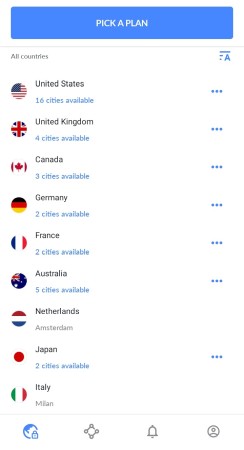
Scroll down to see the list of available countries.

- Tap on your chosen country
- That's it. You'll be instantly linked to a VPN server
How to spoof Android GPS location with apps?
If you've ever wondered how to spoof your Android GPS location via apps on your phone, we have just what you need. Let's go through the following steps.
- Install the GPS spoofer of your choice, such as FakeGPS Free.
- Launch the app and click Allow when prompted to permit it to see your device's location.
- At the initial prompt in more recent Android operating systems, choose While using app (could be called something slightly different if you're using an older Android version) and then choose to ACCEPT if you encounter an ad.
- After completing the tutorial tour, tap OK. On the text about mock locations that appears at the bottom, select Enable.
- Open the Developer Settings screen by selecting that option, then select FakeGPS Free near the bottom of the page.
- Go back to this step if you don't get this screen after activating developer mode. You may need to select the option close to the Enable mock locations selection on the Developer settings screen in some versions of Android.
- Return to the app using the back button, then look up the address you want to pretend to be at on your smartphone. Hold down your finger on the grid to drop put markers if you're creating a route.
- Activate the mock GPS setting by pressing the Play button in the bottom-right corner of the map. If you want to check if your GPS module has been altered, you can quit the program and launch Google Maps or another location-based app.
GPS spoofing apps for Android
These are the top Android apps for GPS spoofing. You don't need to root your tablet or smartphone to use any of these, which are all free. Rather, you can play around with your device's Developer option.
Best GPS spoofing apps that work:
- GPS Emulator
- Fake GPS Location: Joystick and Routes
- Fake GPS Location spoofer
- Fake GPS Location Professional
Spoof Android GPS location with a free VPN
Your IP address and geolocation are concealed using a trustworthy free VPN, making it appear as though you are in a different country. You can do this to protect your data transmission from outside monitoring.
Even though many gadgets allow you to change the DNS records on your smartphone, this option is not the best for the security of your device. Let's examine a couple of free VPNs that can help.
- Atlas VPN. This is a virtual network that safeguards users' online privacy and protects them from dangers. It provides a range of user security features, such as tracker blockers, spyware, and ad filtering, among others. More so, it's completely free to use.
- Proton VPN. To protect the anonymity of activists and journalists that are using ProtonMail, Proton VPN was created as a secure VPN. Like Atlas VPN, Proton VPN is also free to use.
However, for the best results, we highly recommend using a premium VPN with a free trial, such as NordVPN. It has a 7-day free trial plus a 30-day money-back guarantee, giving you more than one month of costless Android location spoofing.
What if VPN does not change location on Android
Your IP address would be hidden when you connect to a server in the UK, the US, or any other country your VPN provides. Websites should then treat you like you're accessing them from your selected country.
Regrettably, this is not always the case. You can try the following measures if you discover your VPN doesn’t change location on Android as expected:
- Check the location of your VPN. Confirming the information provided by your software applications is the first stage in detecting VPN location problems.
- Try a different server. Your new IP address may occasionally be assigned to you properly, but a site may block it or otherwise restrict your access if it determines that it is part of a VPN address range.
- Cookie Cutting. If you're created a profile or have already visited the site, changing your IP address won't be sufficient to convince it that you are in a different place. Clear your cookies and cache, or use an entirely new browser.
Is location spoofing legal?
GPS spoofing is completely legal as long as the operator of the GPS-enabled device approves. Yet, it is against the law to fake a device and move it without the owner's consent. Nobody will object if all you're doing is changing your position and have no plans to carry out any criminal activities or GPS spoofing attacks.
You can spoof your location using different methods. One is via proxy, and the second one is by using a GPS spoofing app for Android. However, we recommend choosing NordVPN, a reliable service for changing your location.
Wrapping up
Since you've now become aware of GPS spoofing and how to effectively utilize it in your everyday life, you can choose the method that fits you most. Our recommendation is to use a reliable VPN provider, such as NordVPN.
A VPN will not only change your location and IP, but it will also give you access to geo-blocked content from all over the world. And most importantly, it will keep your data safe from leaks and third parties.
Please feel free to share and comment if you found this article useful. We'd be thrilled to hear from you.
FAQ
How do I change the country location on my phone?
There are two methods for altering your geographical location. You could either use a GPS spoofing program or download a VPN, such as NordVPN.
How do I alter my location on Google Maps Android?
Install a GPS-spoofing app, such as Fake GPS Location. Then, install Send to GPS app, select a location on Google Maps, tap Share, and then Send to GPS app.
Can I change my phone location without VPN?
Yes. The most popular method for changing your IP address is with a VPN, which provides online protection and privacy. Other options include using a proxy or a GPS-spoofing app.